Everything You Need to Know to Convert Image into EPS Format
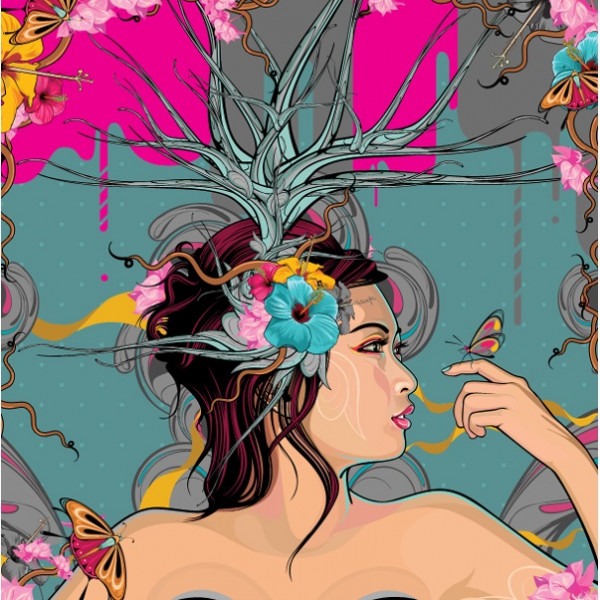

So, you've got a logo, an illustration, or a graphic that needs to look crisp on a business card, a billboard, and everything in between. You might have been asked by a printer, a sign-maker, or a web developer to provide the file in a specific format: EPS. If your design currently lives as a JPG or PNG on your computer, you're likely facing the common task of converting it. But this isn't a simple "Save As" operation. Converting a pixel-based image into the versatile, scalable world of vector graphics requires a bit of know-how. Let's break down exactly what EPS is, why it matters, and the practical methods you can use to successfully convertimage into EPS format.
What Exactly is an EPS File?
First, let's demystify the acronym. EPS stands for
Encapsulated PostScript. Think of it less as a simple image and more as a
sophisticated set of mathematical instructions. While an EPS file can contain
raster image data, its true power lies in holding vector graphics. Unlike a JPG
or PNG (composed of a fixed grid of colored pixels), a vector graphic uses
points, lines, curves, and shapes defined by mathematical equations. This means
you can scale a vector-based EPS file up to the size of a building or down to
the size of a stamp without any loss of quality or the dreaded
"pixelation." It's the preferred format for professional printing,
engraving, vinyl cutting, and any application where scalability and editability
are non-negotiable.
The Core Challenge: Raster vs.
Vector
Understanding the fundamental difference between your starting point and your destination is key. Your JPG is a raster image. If you zoom in far enough, you'll see the individual squares of color that make up the picture. Converting this to EPS doesn't magically invent new data; the goal is to trace or recreate that pixel-based image using clean, scalable vector paths.
This is why not all images are good candidates. A simple logo with solid colors and clear edges is ideal. A detailed photograph of a forest, with millions of colors and soft gradients, is extremely difficult and often impractical to convert into a true, clean vector format without significant simplification.
Your Toolkit: Methods for
Conversion
You have several paths available, each with its own balance of cost, control, and quality.
1. Using Professional Vector Software (The Gold Standard)
This method gives you the most control and the cleanest results. Programs like
Adobe Illustrator, CorelDRAW, or the free, open-source Inkscape are built for
this work.
- The
Process: You import your JPG/PNG into the software as a
background layer. Then, using tools like the Pen Tool or the automated
Image Trace function (called "Trace Bitmap" in some programs),
you manually or semi-automatically create vector paths over the top of
your image.
- The
Advantage: You achieve a truly editable, professional vector
file. You can adjust anchor points, change colors globally, and separate
elements into layers. This is the only method that guarantees a correct and
usable EPS for high-stakes professional work.
- The
Consideration: It requires access to the software and a learning
curve to use the tools effectively, especially for complex logos.
2. Leveraging Online Conversion Tools (The Quick Fix)
A quick web search will reveal dozens of free online converters that promise to
turn your JPG into an EPS in seconds.
- The
Process: You upload your file, click "Convert," and
download the result.
- The
Advantage: It's fast, requires no software installation, and is
often free. It can be adequate for very simple, high-contrast graphics
where precision isn't critical.
- The Consideration: This is a major caveat. Most of these tools do not create true, editable vector paths. Instead, they often "encapsulate" your original raster image inside an EPS wrapper. The file may have an .eps extension, but it still contains the original pixels and will become blurry when scaled. Always check the file by zooming in extensively in a viewer. Furthermore, you sacrifice security and editability.
3. Outsourcing to a Professional (The Hands-Off Solution)
If your graphic is complex, or the project is important, hiring a graphic
designer on a freelance platform is a wise investment.
- The
Process: You provide your best-quality raster image and a clear
brief. The designer uses their expertise in vector software to
meticulously recreate your graphic.
- The
Advantage: You receive a perfect, editable, and professionally
built EPS file without spending your own time learning new skills. This is
the best route for branding assets you'll use for years.
- The
Consideration: It involves a cost and requires clear
communication to ensure the final vector matches your vision.
A Step-by-Step Guide for Adobe
Illustrator
Since Illustrator is the industry standard, here's a simplified workflow using its powerful tools:
- Place
Your Image: Open Illustrator and go to File >
Place to import your JPG. Use a high-resolution version for the best
tracing result.
- Use
Image Trace: With the image selected, open the Image
Trace panel (Window > Image Trace). Choose a preset like
"Logo" for simple graphics, or "Sketch Art" for
drawings. Play with the Advanced options: increase Paths and Corners for
more detail, adjust Threshold for black/white images.
- Expand
and Edit: Once the trace looks good, click
the Expand button in the top toolbar. This converts the trace
into fully editable vector paths and shapes.
- Clean
Up: Ungroup the elements and use the Direct Selection Tool (the
white arrow) to clean up stray points or smooth awkward curves. This
cleanup step is what separates a good vector from a great one.
- Save
as EPS: Go to File > Save As. Choose Illustrator EPS
(*.EPS) as the format. In the dialog box that appears, you can
usually leave the default settings, ensuring Preview is set to
"TIFF (8-bit color)" for compatibility.
Critical Checks After Conversion
Your job isn't done once the file is saved. To ensure you have a true vector EPS, you must verify it.
- The
Zoom Test: Open your new EPS file in a viewer (like Adobe Acrobat
or Illustrator itself) and zoom in to 800% or more. If the edges remain
razor-sharp, you have vectors. If they become blurry or blocky, you have a
raster image in an EPS container.
- The
Edit Test: Can you select individual shapes with the Direct
Selection Tool? Can you change the fill color of one element without
affecting others? If yes, you have an editable vector file.
Why Bother? The Real-World
Benefits
Taking the time to properly convert image into EPS format unlocks a world of professional applications. It future-proofs your branding, ensuring your logo never looks unprofessional on a large format print. It gives manufacturers and collaborators the editable file they need to produce signs, embroidered wearables, or engraved products. In essence, it transforms your graphic from a static picture into a flexible, powerful asset.
Whether you decide to learn the software, use a careful online tool for a one-off project, or hire an expert, understanding this process empowers you to meet professional standards and protect the integrity of your visual identity. The crisp, clean lines of a well-made vector EPS are worth the effort.
- Like
- Reply
-
Share



About Us · User Accounts and Benefits · Privacy Policy · Management Center · FAQs
© 2026 MolecularCloud